> ## Documentation Index
> Fetch the complete documentation index at: https://v2galileo-feat-update-docs-main-28471856540.mintlify.site/llms.txt
> Use this file to discover all available pages before exploring further.
# Step 1 — Metric
> Pick a predefined metric template or write a custom LLM-as-judge prompt.
The first step asks: *what should this metric measure?* You can pick from a curated list of templates, or click **Use custom prompt** to write your own.
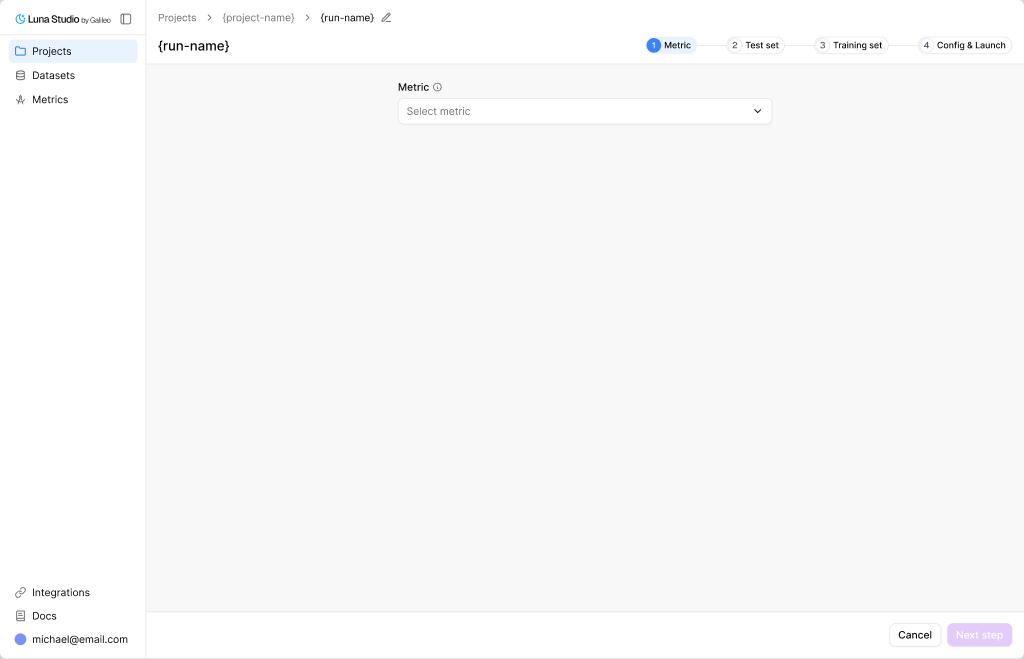 ## Pick a metric
The **Metric** select is searchable. It includes trainable Galileo LLM-as-judge metrics available to your workspace, plus custom metrics and prompts your org created.
The picker is organized into three groups:
* **Galileo presets** — built-in Galileo scorers that Luna Studio can train.
* **Custom Galileo metrics** — custom metrics already created in Galileo.
* **Saved custom prompts** — prompts previously authored in Luna Studio.
Metrics that exist but are not trainable yet can appear disabled with a "not trainable yet" suffix. Multimodal metrics are filtered out because Luna Studio trains text metrics today.
## Inspect a selected template
Once you pick a template, the form expands to show a read-only **Metric details** panel:
* **Output type** — the metric's return shape (Boolean, Categorical etc.). See [Output types](/luna-studio/ui/core-concepts#metrics).
* **Step** — the trace step the metric runs against (LLM span, Retriever, Agent span, or Trace).
* **Input step** — the input shape Luna Studio expects for training data, such as a single message, input / output pair, full trace, or full session.
* **Prompt** — the LLM-as-judge prompt the template uses, in a read-only textarea.
## Write a custom prompt
For metrics that don't fit a template, click the dropdown's **Use custom prompt** option (with a `+` icon). The form switches into editable mode.
## Pick a metric
The **Metric** select is searchable. It includes trainable Galileo LLM-as-judge metrics available to your workspace, plus custom metrics and prompts your org created.
The picker is organized into three groups:
* **Galileo presets** — built-in Galileo scorers that Luna Studio can train.
* **Custom Galileo metrics** — custom metrics already created in Galileo.
* **Saved custom prompts** — prompts previously authored in Luna Studio.
Metrics that exist but are not trainable yet can appear disabled with a "not trainable yet" suffix. Multimodal metrics are filtered out because Luna Studio trains text metrics today.
## Inspect a selected template
Once you pick a template, the form expands to show a read-only **Metric details** panel:
* **Output type** — the metric's return shape (Boolean, Categorical etc.). See [Output types](/luna-studio/ui/core-concepts#metrics).
* **Step** — the trace step the metric runs against (LLM span, Retriever, Agent span, or Trace).
* **Input step** — the input shape Luna Studio expects for training data, such as a single message, input / output pair, full trace, or full session.
* **Prompt** — the LLM-as-judge prompt the template uses, in a read-only textarea.
## Write a custom prompt
For metrics that don't fit a template, click the dropdown's **Use custom prompt** option (with a `+` icon). The form switches into editable mode.
 In custom mode, you fill in:
| Field | Required | Notes |
| ----------- | -------- | --------------------------------------------------------------------------------------- |
| Metric name | No | Optional display name. If blank, Luna Studio derives one from the run context. |
| Output type | Yes | The trainable return shape: Boolean or Categorical. |
| Step | Yes | The trace step the metric runs against: LLM span, Retriever, Agent span, Trace. |
| Input step | Yes | Training input shape: Single message, Input / output pair, Full trace, or Full session. |
| Modality | No | Read-only. Fixed to **Text** today. |
| Prompt | Yes | The LLM-as-judge prompt. Required. |
## Output types in detail
| Output type | When to use |
| ----------- | ----------------------------------------------------------------------- |
| Boolean | Yes/no questions ("Is this toxic?", "Does the answer cite a source?"). |
| Categorical | Picking one of a fixed list (e.g. `positive` / `neutral` / `negative`). |
Other Galileo output types are not trainable in Luna Studio yet. The output type also constrains what label values your test set can use during validation. See [Test sets](/luna-studio/ui/datasets/test-sets#required-schema).
## Steps in detail
| Step | Where it fires |
| ---------- | -------------------------------------------------------------- |
| LLM span | A single LLM call inside a trace. The default and most common. |
| Retriever | A retrieval step (e.g. evaluating chunk relevance). |
| Agent span | A single agent step inside a trace. |
| Trace | The full trace — input, intermediate steps, and final output. |
The right step depends on what your metric needs to see. For "is the final answer toxic?" use LLM span or Trace. For "are retrieved chunks relevant?" use Retriever.
## Input steps
| Input step | When to use |
| ------------------- | ------------------------------------------------------------------------------------- |
| Single message | One text input per row. Used for trace input / output metrics like the safety metrics |
| Input / output pair | Rows that include both the prompt/input and model output. |
| Full trace | Trace-level metrics that need the full request flow. |
| Full session | Session-level metrics that need multiple related traces. |
Note: Full trace and full session inputs require user-supplied training data; synthetic generation is disabled for those shapes.
## Prompt-writing tips
* **Be specific.** Define exactly what counts as a positive vs negative result.
* **Give examples.** One or two short examples per outcome class is plenty.
* **Constrain the output.** End the prompt with something like "Respond with only `true` or `false`." for Boolean metrics.
* **Avoid open scales.** "Score 1–10" is harder for an LLM judge to keep consistent than a binary or 3-class categorical.
**Pro tip:** For best results, we recommend first creating your metric in the Galileo console and using the **Autotune** feature to test and refine it on a labelled test dataset. This helps you optimize the metric’s performance before
launching a full training run in Luna Studio.
## Where to go next
Pick the labelled dataset Luna evaluates against.
Schema rules and best practices for evaluation data.
In custom mode, you fill in:
| Field | Required | Notes |
| ----------- | -------- | --------------------------------------------------------------------------------------- |
| Metric name | No | Optional display name. If blank, Luna Studio derives one from the run context. |
| Output type | Yes | The trainable return shape: Boolean or Categorical. |
| Step | Yes | The trace step the metric runs against: LLM span, Retriever, Agent span, Trace. |
| Input step | Yes | Training input shape: Single message, Input / output pair, Full trace, or Full session. |
| Modality | No | Read-only. Fixed to **Text** today. |
| Prompt | Yes | The LLM-as-judge prompt. Required. |
## Output types in detail
| Output type | When to use |
| ----------- | ----------------------------------------------------------------------- |
| Boolean | Yes/no questions ("Is this toxic?", "Does the answer cite a source?"). |
| Categorical | Picking one of a fixed list (e.g. `positive` / `neutral` / `negative`). |
Other Galileo output types are not trainable in Luna Studio yet. The output type also constrains what label values your test set can use during validation. See [Test sets](/luna-studio/ui/datasets/test-sets#required-schema).
## Steps in detail
| Step | Where it fires |
| ---------- | -------------------------------------------------------------- |
| LLM span | A single LLM call inside a trace. The default and most common. |
| Retriever | A retrieval step (e.g. evaluating chunk relevance). |
| Agent span | A single agent step inside a trace. |
| Trace | The full trace — input, intermediate steps, and final output. |
The right step depends on what your metric needs to see. For "is the final answer toxic?" use LLM span or Trace. For "are retrieved chunks relevant?" use Retriever.
## Input steps
| Input step | When to use |
| ------------------- | ------------------------------------------------------------------------------------- |
| Single message | One text input per row. Used for trace input / output metrics like the safety metrics |
| Input / output pair | Rows that include both the prompt/input and model output. |
| Full trace | Trace-level metrics that need the full request flow. |
| Full session | Session-level metrics that need multiple related traces. |
Note: Full trace and full session inputs require user-supplied training data; synthetic generation is disabled for those shapes.
## Prompt-writing tips
* **Be specific.** Define exactly what counts as a positive vs negative result.
* **Give examples.** One or two short examples per outcome class is plenty.
* **Constrain the output.** End the prompt with something like "Respond with only `true` or `false`." for Boolean metrics.
* **Avoid open scales.** "Score 1–10" is harder for an LLM judge to keep consistent than a binary or 3-class categorical.
**Pro tip:** For best results, we recommend first creating your metric in the Galileo console and using the **Autotune** feature to test and refine it on a labelled test dataset. This helps you optimize the metric’s performance before
launching a full training run in Luna Studio.
## Where to go next
Pick the labelled dataset Luna evaluates against.
Schema rules and best practices for evaluation data.